How I Automated Email Translations with ChatGPT and Braze with 0,33$

Let’s face it—managing email translations for a global audience can feel like running a never-ending marathon. Between juggling tools, timelines, and accuracy, it’s easy to get bogged down. So, I decided to shake things up. By teaming up ChatGPT’s language superpowers with Braze’s customer engagement platform, I built a system that takes the hassle out of email translations. Here’s the inside scoop.
The Problem
Centralized teams often struggle to effectively reach multiple countries due to the bottleneck of numerous translation requests. This inefficiency leads to delays in campaign execution and missed opportunities to connect with diverse audiences.
The opportunity
Considering the effort involved, we can estimate 20 minutes of work per email (best case scenario) for each of the 24 localization managers (one per language in Europe), plus 20% hour of coordination time. This brings the total time saved to approximately 9.6 hours per email.
With an estimated gross salary of €40,000 per year, the cost savings per email would be around €184.
Assuming three email per week, this translates to an annual savings of approximately €28,000.
My Hack
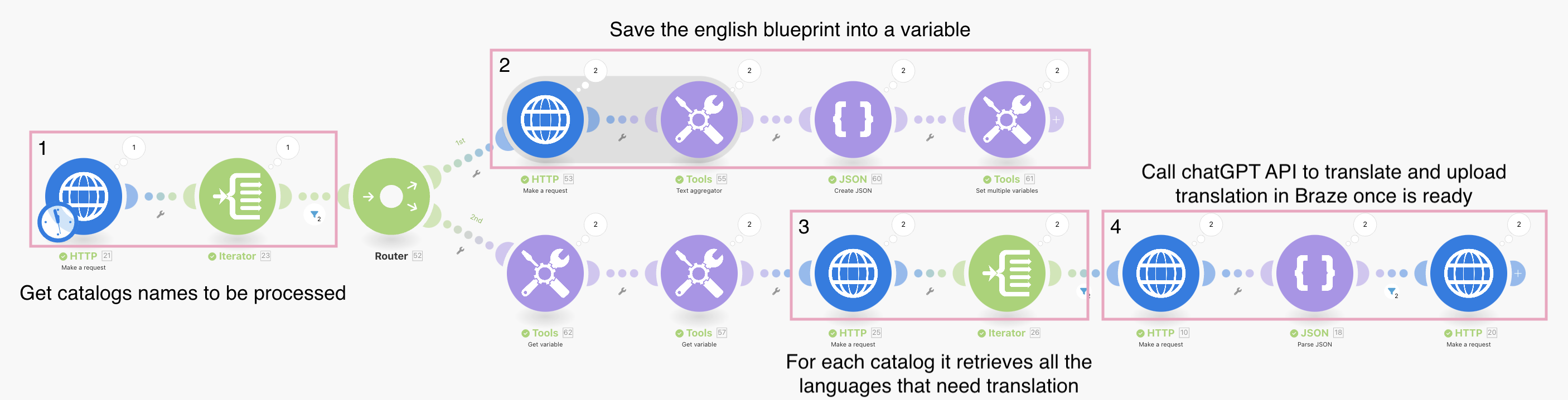
Here’s how I tackled it. I used Make.com to create automated workflows that leverage the APIs from both Braze and ChatGPT to automatically translate email content. While I used Make.com for this setup, it can be built using various other solutions (custom scripts, Zapier, n8n, etc.). In the steps below, I kept the explanation at a high level to avoid being tool-specific.
How It Works
Before starting is important to know that one way to localize emails in Braze is by using a catalog. The method works like a VLOOKUP; Braze uses the language_code to select the language to display to the customer. I won't elaborate on this explanation as it can be studied here.
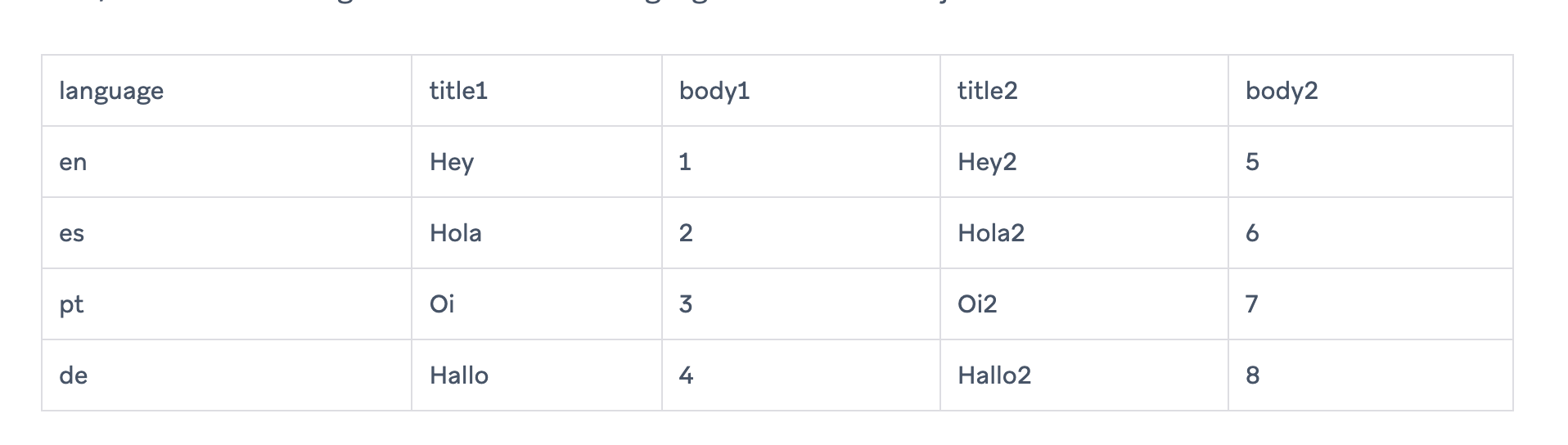
0) Setup Catalog in Braze
The first step is to set up the catalog in Braze with the email content that needs translation. The catalog must be formatted as shown above, using a standard ISO 639 language code as its ID (e.g., en, es, pt, de). Here's what you need to do:
- Define a naming convention for the catalogs that need to be translated. For convenience, let's define it the the catalogs will always ends with _translations
christmas_martechdude_translations. - Insert the English blueprint with the texts that need to be translated. Let's define this language code as
en. - Add the other language codes you want to translate into the ID column. For example, let's use
fr,it, andde.
No further setup is required in Braze; now, we need to proceed with Make.com.
1) Take catalogs that need translation
Let's move to make.com and, as the first step of our automation, use the /catalogs endpoint to fetch all the catalogs saved in Braze. In this step Braze will tell us all the catalogs that are in the platform. Thanks to the naming convention, we know that only catalogs with _translations in their name need to be translated. I expect in this phase to get the catalog named christmas_martechdude_translations. The scenario includes an iterator function (similar to a for each) that will execute the next steps for each catalog entry retrieved. While I’ll use a single translation as an example, the scenario can handle multiple translations simultaneously.
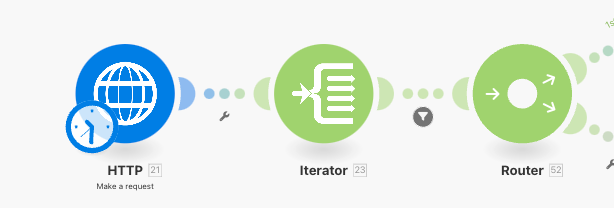
2 ) Store English Translation
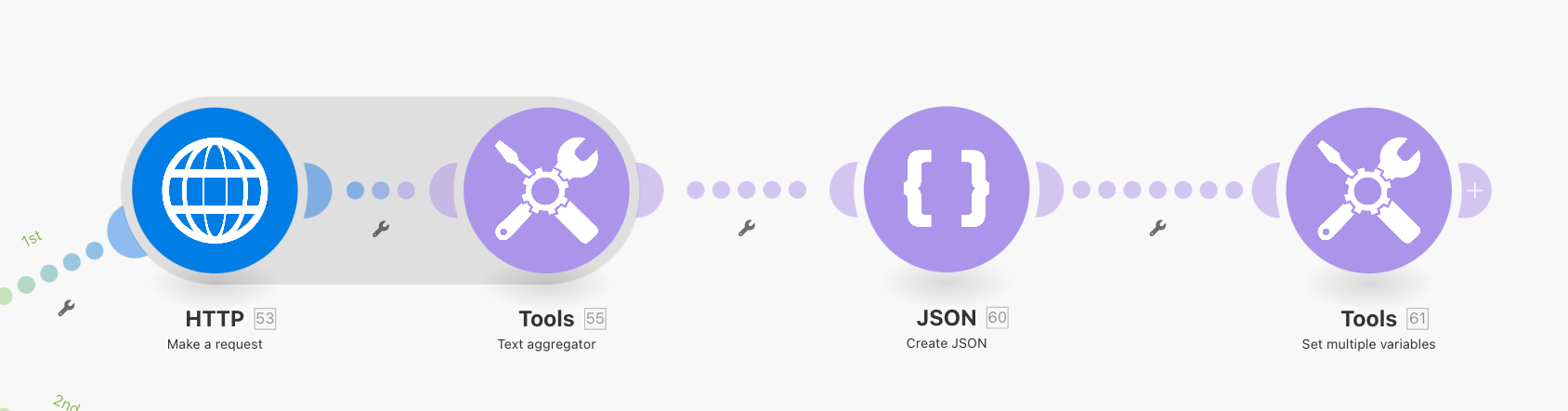
Now that we have identified all the catalogs that need translation, the next step is to store the English content from the en catalog item into a variable. To achieve this, we use the API call /catalogs/{{catalog name}}/items/en. This call retrieves and saves all the email elements requiring translation. Let’s assume that this step stores the English blueprint in a variable named {{text-to-translate}}.
It’s crucial to ensure this step is completed before any other action; otherwise, we won’t be able to send the English blueprint to the ChatGPT API.
{{text-to-translate}}GET Response from /catalogs/{{catalog name}}/items/en
{
"items": [
{
"id": "en",
"title": "Marry Christmas",
"body": "Enjoy my article",
"paragraph": "Very Much"
}
],
"message": "success"
}Response Example
In the response above, you should see the email content you set up in the catalog during step 0.
3) List the languages I need to translate
Now that I have stored the English blueprint in {{text-to-translate}}, I need to determine which language codes require translation (e.g., fr and it). To do this, I use the API call /catalogs/{{catalog name}}/items/ which will list all the items that are in the catalog. As you can see in the example below with the API response I know that translations for it and fr language code are empty, and require to be translated.
GET Response from /catalogs/{{catalog name}}/items/

{
  "items": [
    {
      "id": "en",
      "title": "Marry Christmas",
      "body": "Enjoy my article",
      "paragraph": "Very Much"
    },
      {
      "id": "it",
      "title": "",
      "body": "",
      "paragraph": ""
    },
      {
      "id": "fr",
      "title": "",
      "body": "",
      "paragraph": ""
    }
  ],

  "message": "success"
}
Response Example
At this point, I will use the iterator function to process the next step for each item retrieved from the call, excluding the en item and any translations that have already been completed.
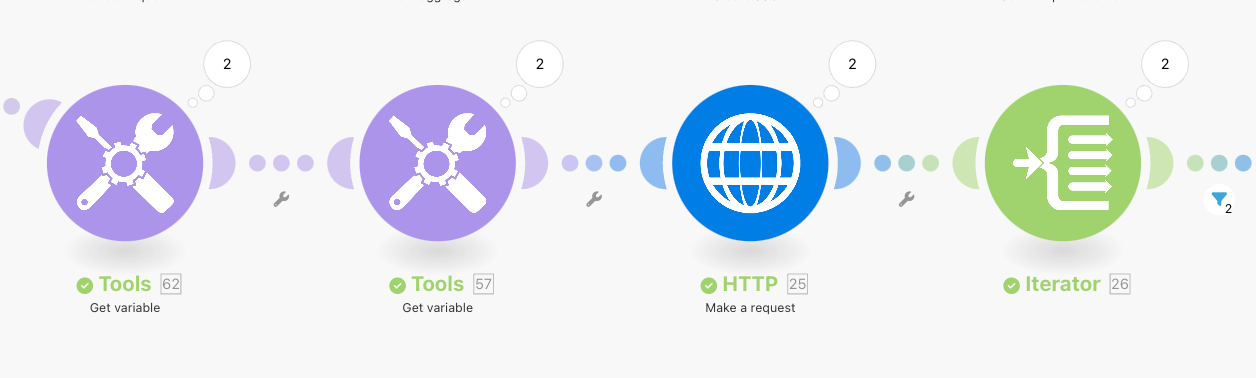
{{text-to-translate}} then the flow proceed picking up the translation who requires translations4) Translate and upload in Braze
Now that I have the catalog, the English blueprint, and the languages that need localization, I'm ready to generate the translations. I'll use this information to call ChatGpt API and obtain precise translations. For each item, I'll make an API call that includes the English blueprint AND a request for OpenAI to translate it.
The crucial part to make this whole process to work is to setup in ChatGPT API to respond in JSON format, ensuring everything is set for the next upload to Braze. ChatGPT will provide the translations in JSON format, which can be directly uploaded to Braze.
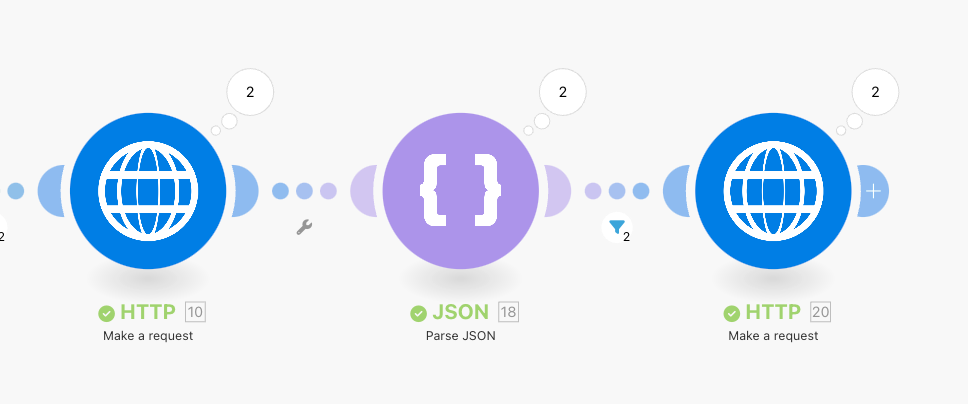
INFO:
{{text-to-translate}} = { "id": "en", "title": "Marry Christmas", "body": "Enjoy my article", "paragraph": "Very Much"}
{{id_item_language_code}} = language code retrieved in step 3

Post https://api.openai.com/v1/chat/completions

{
  "model": "gpt-4o-2024-08-06",
  "messages": [
    {
      "role": "system",
      "content": "You are a professional translator and you need to localize the content the user provides to {{id_item_language_code}} language code." ** prompt to translate english language **
    },
    {
      "role": "user",
      "content": "{{text-to-translate}}" ** Variable stored in step 2 **
    }
  ],
  "response_format": {
    "type": "json_schema",  ** this is how to request chatgpt to use the correct format **
    "json_schema": {
      "name": "email_schema",
      "schema": {
        "type": "object",
        "properties": {
          "title": {
            "description": "translate the 'title' here only if the object name is 'subject_line'",
            "type": "string"
          },
          "body": {
            "description": "translate the 'body' here only if the object name is 'preheader'",
            "type": "string"
          },
          "paragraph": {
            "description": "translate the 'paragraph' here only if the object name is 'H1-text'",
            "type": "string"
          }
        },
        "additionalProperties": false
      }
    }
  }
}
Price
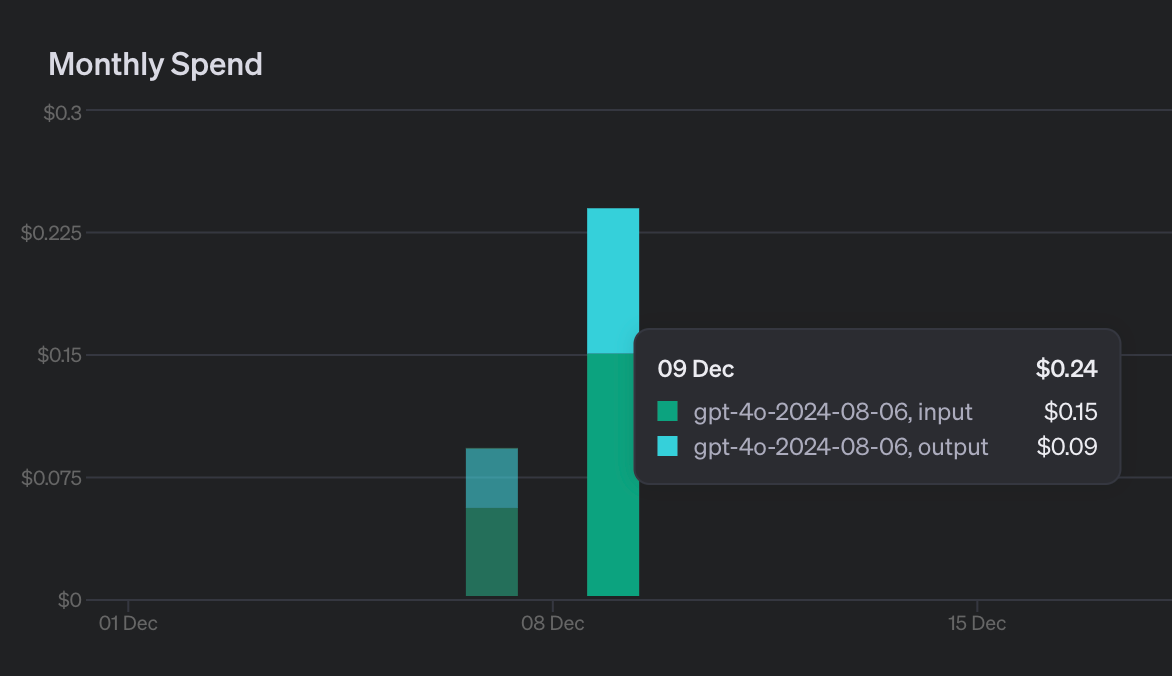
The cost to perform this workflow is extremely low, for the whole testing process, sending many different requests I've spent 0,33 $. For Make.com I've spent 0€ since I was on free trial.
Let’s Chat
I hope you enjoyed the article and got some useful ideas for your own implementation!
Remember, this is just an MVP, and there’s plenty of room to make it better. Adding extra verification steps would help ensure accurate translations, and it’s just as important to let business users tweak the tone of voice to make the message really shine. Let me know your thoughts—I’m curious to hear how you’d approach it!